
How to Add a Personalization Box to Your Shopify Products
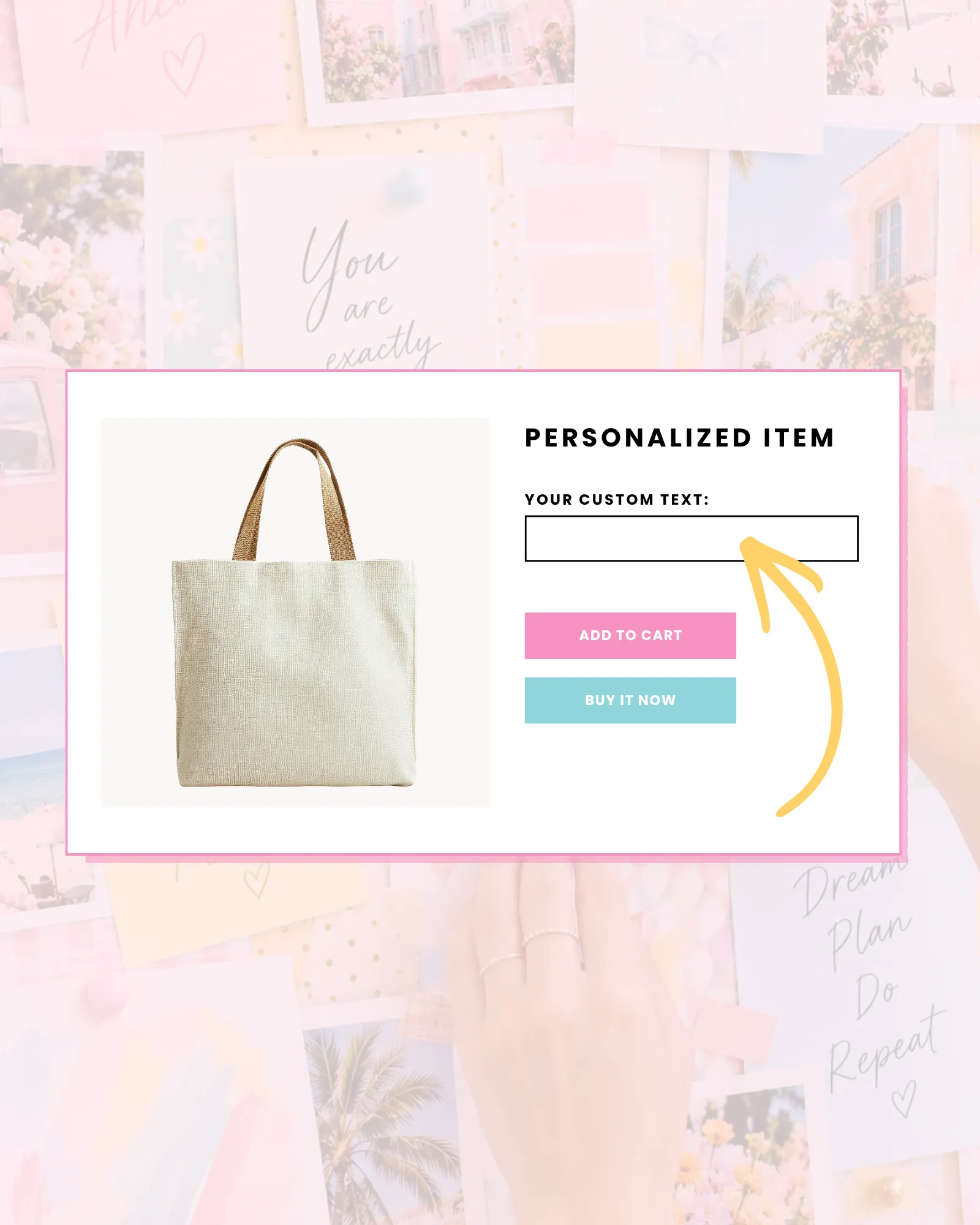
Want to let customers add their name, initials, a special message, or custom options to your Shopify products? Good news! You don’t need to hire a developer, install a bunch of apps, or spend hours figuring out complicated code.
Whether you’re selling personalized gifts, monogrammed accessories, custom stationery, or handmade products, adding a personalization box to your Shopify store can be easier than you think.
In this guide, I’m sharing three ways to add product personalization to Shopify, including a completely free generator I created that lets you build custom fields without touching your theme’s code files.
Let’s get into it!
IN THIS ARTICLE
What Is a Shopify Personalization Box?
A Shopify personalization box is a custom field on your product page that allows shoppers to enter information or select options before adding an item to their cart.
For example, you might want customers to:
- Enter a name or initials for a monogrammed tote bag.
- Add a personalized message to a greeting card.
- Choose a design or style from a dropdown menu.
- Include special instructions for a handmade order.
- Select an optional gift-wrapping checkbox.
These details can be saved with the product as line item properties, helping you see exactly what your customer requested when fulfilling their order.
The best part? You don’t necessarily need a paid Shopify app to make it happen.
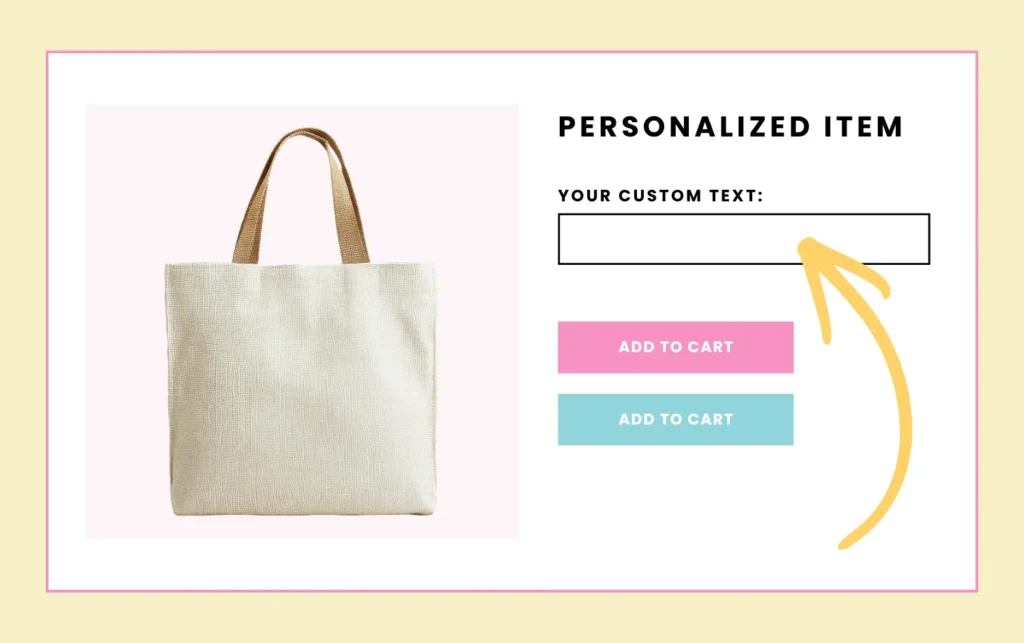
Method 1: Add a Personalization Box to Shopify for Free (No App Required)
Already have a Shopify theme you love, but wish it had a personalization field? This option is for you!
I created a Free Shopify Personalization Code Generator to make adding custom product fields a whole lot easier.
Instead of digging through Liquid files or trying to figure out where to paste snippets of code, you can create your personalization fields visually, generate the code, and add it directly through Shopify’s theme customizer.
No app subscriptions. No editing theme code files. No coding experience required.
What Can You Create With the Free Generator?
The generator includes four field types:
- Single-Line Text: Perfect for names, initials, and short personalized messages.
- Multi-Line Text: Great for longer gift messages, special instructions, or custom requests.
- Dropdown Menus: Let customers choose from a list of options, such as a design, finish, or style.
- Checkboxes: Add simple selections such as gift wrapping or special packaging requests.
You can also customize your field labels, add placeholder text, mark fields as required or optional, and combine multiple fields for the same product.
And yes, you can preview everything before generating your code!
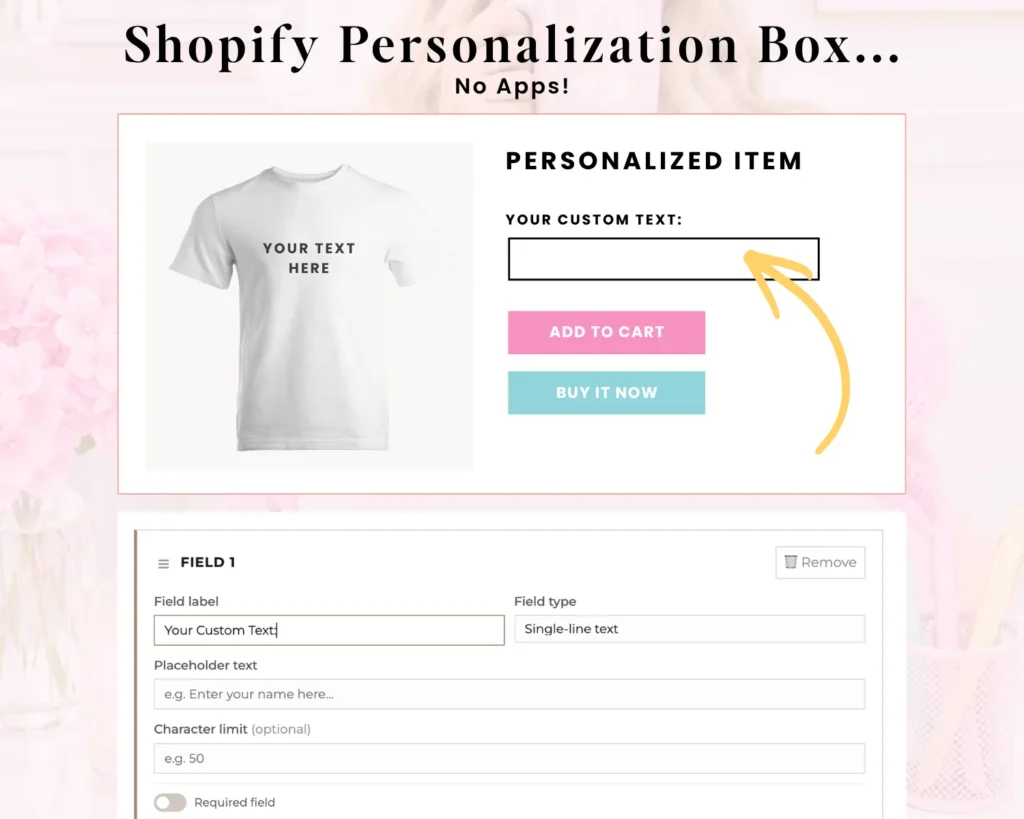
Step 1: Choose Your Personalization Fields
Start by opening the Free Personalization Code Generator.
Choose the type of field you’d like to add to your product page.
For example, if you’re selling personalized makeup bags, you might add a single-line text field labeled “Enter Your Name.”
Need to collect more information? Click Add a Field to include another option, such as a dropdown for selecting a design.
Step 2: Customize Your Fields
Next, customize the details for each field.
Add a descriptive label, enter placeholder text if needed, and choose whether the customer must complete the field before adding the product to their cart.
Keep your instructions short and specific.
Instead of simply writing “Personalization,” try something like “Enter Name (Up to 12 Characters)” so customers know exactly what information you need.
Step 3: Preview and Generate Your Code
Once your fields are ready, use the live preview to see how they’ll appear on your product page.
Happy with everything? Generate your code and copy the result.
The generator does the coding for you!
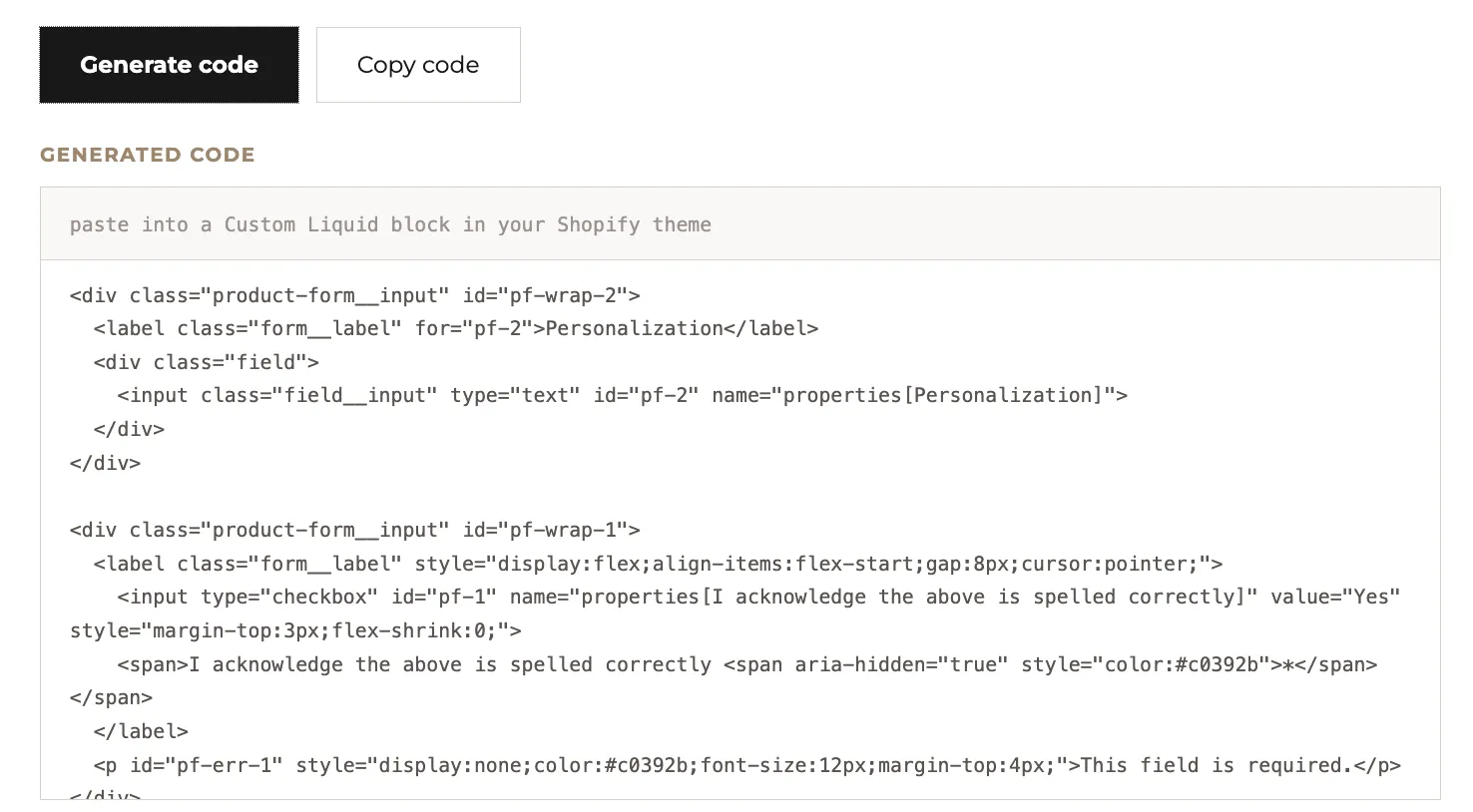
Step 4: Add the Code to Your Shopify Product Page
Now it’s time to add your new personalization fields to your store.
- From your Shopify admin, go to Online Store → Themes.
- Click Customize on the theme you want to edit.
- Open the product template where you want your personalization fields to appear.
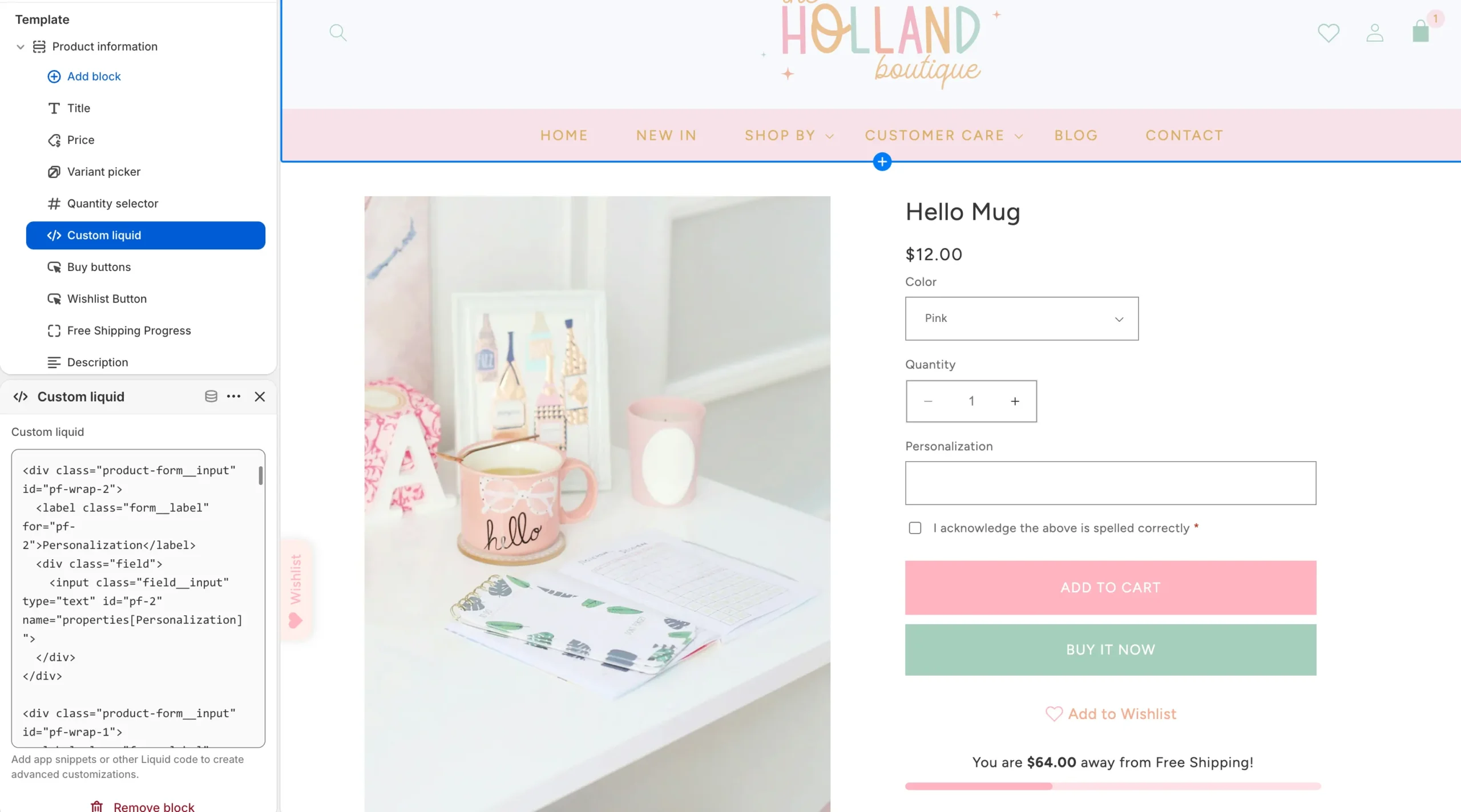
- In the Product Information section, add a Custom Liquid block, if your theme supports it.
- Paste your generated code into the block.
- Save your changes.
That’s it! No need to open the theme’s code editor or modify multiple Liquid files.
Important: The personalization fields need to work with your theme’s product form to save customer selections correctly. Placement and compatibility can vary, so always test your setup before using it on a live product.
Step 5: Test Your Personalization Box
Before you call it done, open your product page and try it out as if you were a customer.
Enter a sample name, choose your options, and add the product to your cart.
Make sure the personalization details are saved with the item and appear correctly in your test order.
This is especially important if you’re using a slide-out cart, Quick Add buttons, or a heavily customized Shopify theme.
Method 2: Use a Shopify Theme With Built-In Personalization
If you’re starting a new Shopify store or thinking about redesigning your current one, choosing a theme with personalization already built in can make things even easier.
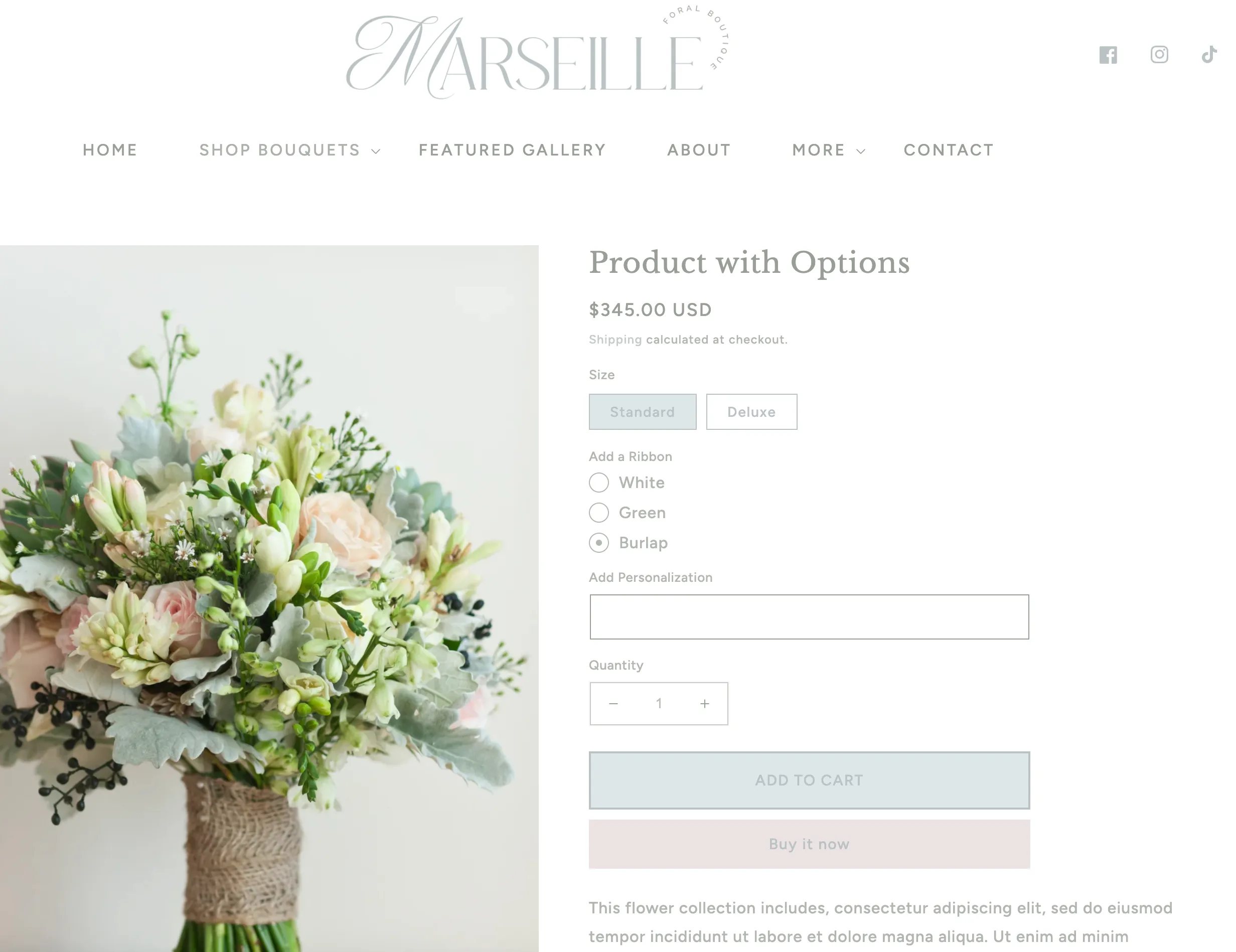
Many Shopify themes require additional setup or apps for certain product options, but Macarons and Mimosas Shopify themes are designed with customizable shopping features in mind.
Our themes offer product personalization options directly within the theme, so you can create a more personalized shopping experience without installing an additional app for basic fields.
Depending on your theme, you can add options such as custom text fields, gift messages, and other product details.
Our newest Essentials and Pro themes take things even further with a more refined collection of built-in shopping features, flexible layouts, and interactive elements.
And personalization is just one piece of the experience!
You’ll also find features like wishlists, animated Quick Add buttons, product upsells, and free shipping progress bars in our newest theme collection.
It’s all about creating a beautiful storefront that’s easy for customers to shop and easy for you to manage.
A Little Something Extra for Our Theme Customers!
Love the free generator? You’re going to LOVE what we’ve created for our Shopify theme customers!
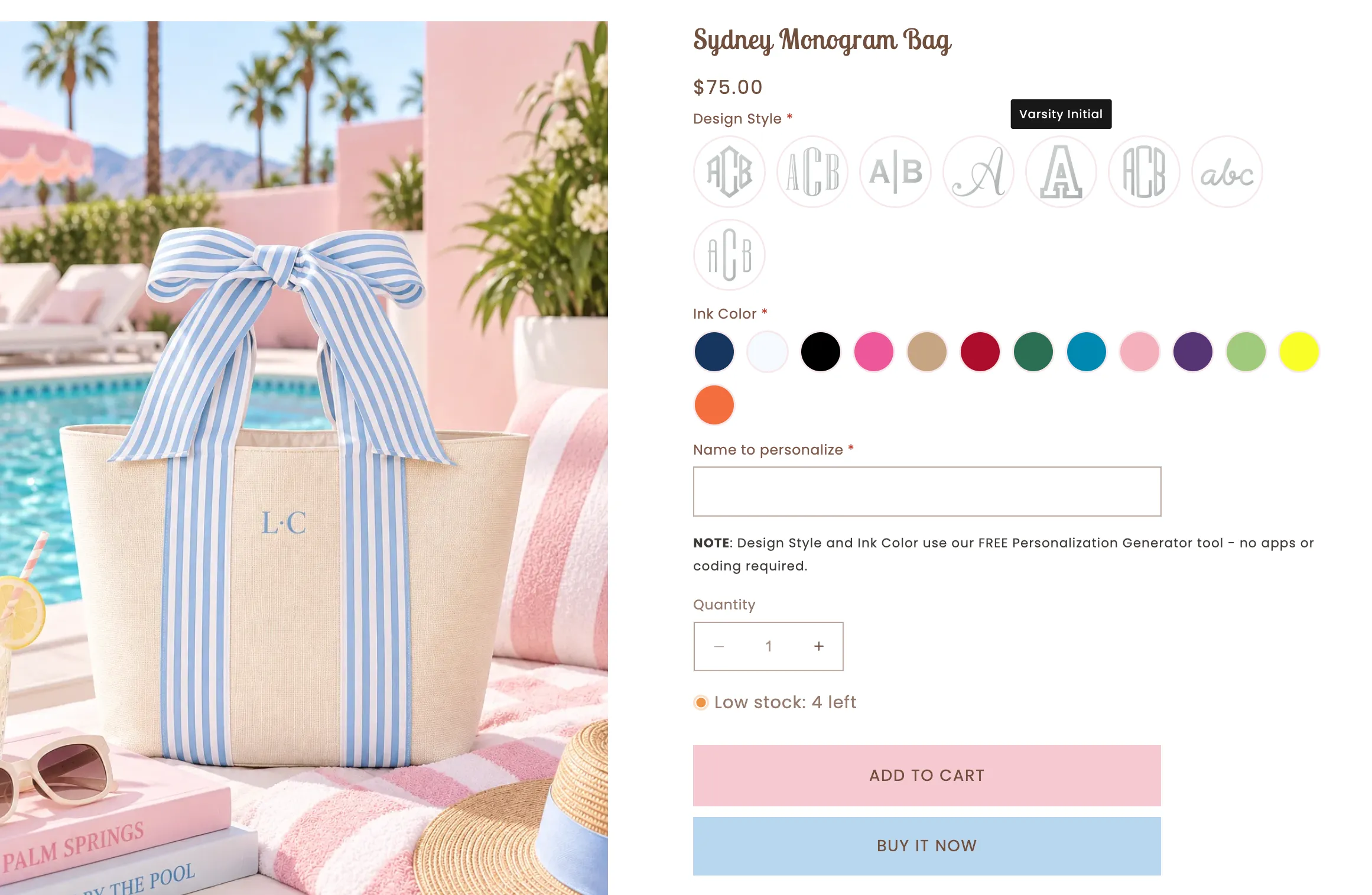
Every Macarons and Mimosas Shopify theme purchase also includes complimentary access to our Advanced Personalization Generator, an exclusive resource designed to give you even more ways to customize your products.
With the advanced generator, you can create:
- Color Swatches: Let shoppers choose from visual color options.
- Image Swatches: Display design choices, monogram styles, patterns, and more.
- Hover Labels: Help customers identify their selections before adding a product to their cart.
- Custom Text Fields: Collect names, initials, and personalized messages.
- Additional Field Options: Create more detailed personalization layouts for your products.
Just like our free generator, the advanced tool generates code that can be added through Shopify’s theme customizer, without editing your theme’s code files.
Pretty amazing, right?
The Advanced Personalization Generator is a complimentary resource reserved for Macarons and Mimosas Shopify theme customers. It’s separate from the theme’s built-in features, but it’s one more way we help you create a storefront that’s uniquely yours.
Method 3: Use a Shopify Product Personalization App
Sometimes your products need a little more customization than a basic text field or dropdown.
If you’re selling highly customizable products that require complex conditional options, additional pricing based on selections, or specialized product previews, a dedicated Shopify personalization app might be the better fit.
A few options worth exploring in the Shopify App Store include:
Globo Product Options: Offers a variety of custom product options and is worth considering if you need more flexibility than your theme provides.
Infinite Options: Designed for adding additional product selections and customization fields.
Product Personalizer: An option to explore if your products require more visual customization or advanced configuration.
Each app has different features, compatibility requirements, and pricing, so compare the current plans before choosing one.
The biggest consideration is whether you actually need an app.
If you’re simply collecting a name, monogram, gift message, or basic product selection, a free generator or built-in theme field may already do everything you need.
Which Shopify Personalization Method Is Best?
Not sure which option makes the most sense for your store? Here’s a quick breakdown.
| Method | Best For | Cost |
|---|---|---|
| Free Personalization Generator | Names, messages, dropdowns, and checkboxes | Free |
| Built-In Theme Personalization | Simple product personalization without additional apps | Included with compatible themes |
| Advanced Personalization Generator | Color swatches, image selections, and custom product options | Complimentary for Macarons and Mimosas theme customers |
| Shopify Personalization App | Complex product options and advanced customization | Free and paid plans available |
My recommendation? Start with the simplest solution that does what your products actually need.
There’s no reason to add another monthly subscription if your existing theme or a free tool can handle the job.
Common Shopify Personalization Mistakes to Avoid
Adding personalization fields is only half the job. You also want to make sure customers understand what to enter and that their selections are saved correctly.
1. Using unclear field labels
Instead of “Custom Text,” try “Enter Name for Personalization” or “Add Your Gift Message.”
2. Forgetting to make important fields required
If you can’t complete an order without the customer’s personalization details, make sure those fields are required and test that the requirement works.
3. Adding too many options
Not every product needs five dropdowns and three text fields. Keep the process simple and only ask for information you actually need.
4. Not testing the cart and order details
Always confirm that names, messages, and selected options are passed through correctly before accepting customer orders.
5. Forgetting about mobile shoppers
Check how your personalization fields look and function on smaller screens. Labels, dropdowns, and swatches should be easy to understand and select.
Frequently Asked Questions
You can use a free personalization code generator to create custom text fields, dropdowns, and checkboxes, then add the generated code to a supported Custom Liquid block in your Shopify theme editor. Make sure the fields are connected to your product form and test that selections appear in the cart and order.
Yes! You can collect multiple details, such as a name, gift message, and design selection. Our free generator allows you to create multiple fields together.
Yes. Visual color swatches and image selections can be created using compatible theme functionality, custom code, or a product options app. Macarons and Mimosas theme customers also receive complimentary access to our Advanced Personalization Generator for more visual customization options.
Not necessarily! If your theme supports Custom Liquid blocks, you may be able to add generated personalization fields directly through the theme editor without modifying theme files. Compatibility depends on how your theme handles product forms.
Shopify can store custom personalization details as line item properties when the fields are properly connected to the product form. Always test the cart and order details to confirm everything is saved correctly.
Ready to Personalize Your Shopify Products?
Whether you’re adding a simple name field or creating a product with multiple customization options, Shopify personalization doesn’t have to be complicated.
Start with our free generator, explore the options already available in your theme, or choose a more advanced solution if your products need it.
And if you’re dreaming of a Shopify store that’s just as beautiful as it is functional, take a peek at our newest Macarons and Mimosas Shopify themes.
They’re packed with thoughtful design details, flexible customization options, and built-in shopping features to help you create a storefront that feels completely your own.
More Posts You Might Like…



Leave a Reply